How to Default to One-Sided Prints
How to Default to One-Sided Prints
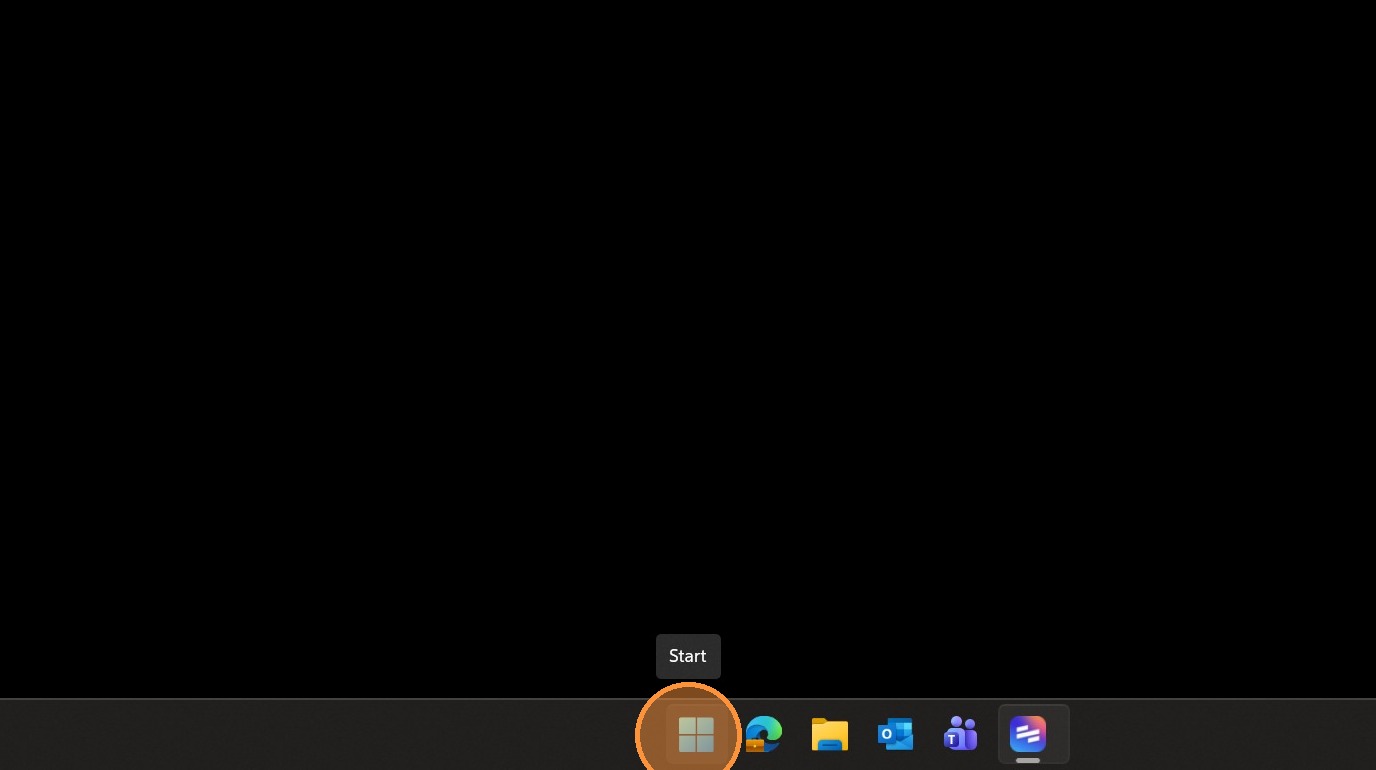
1. Click Start.
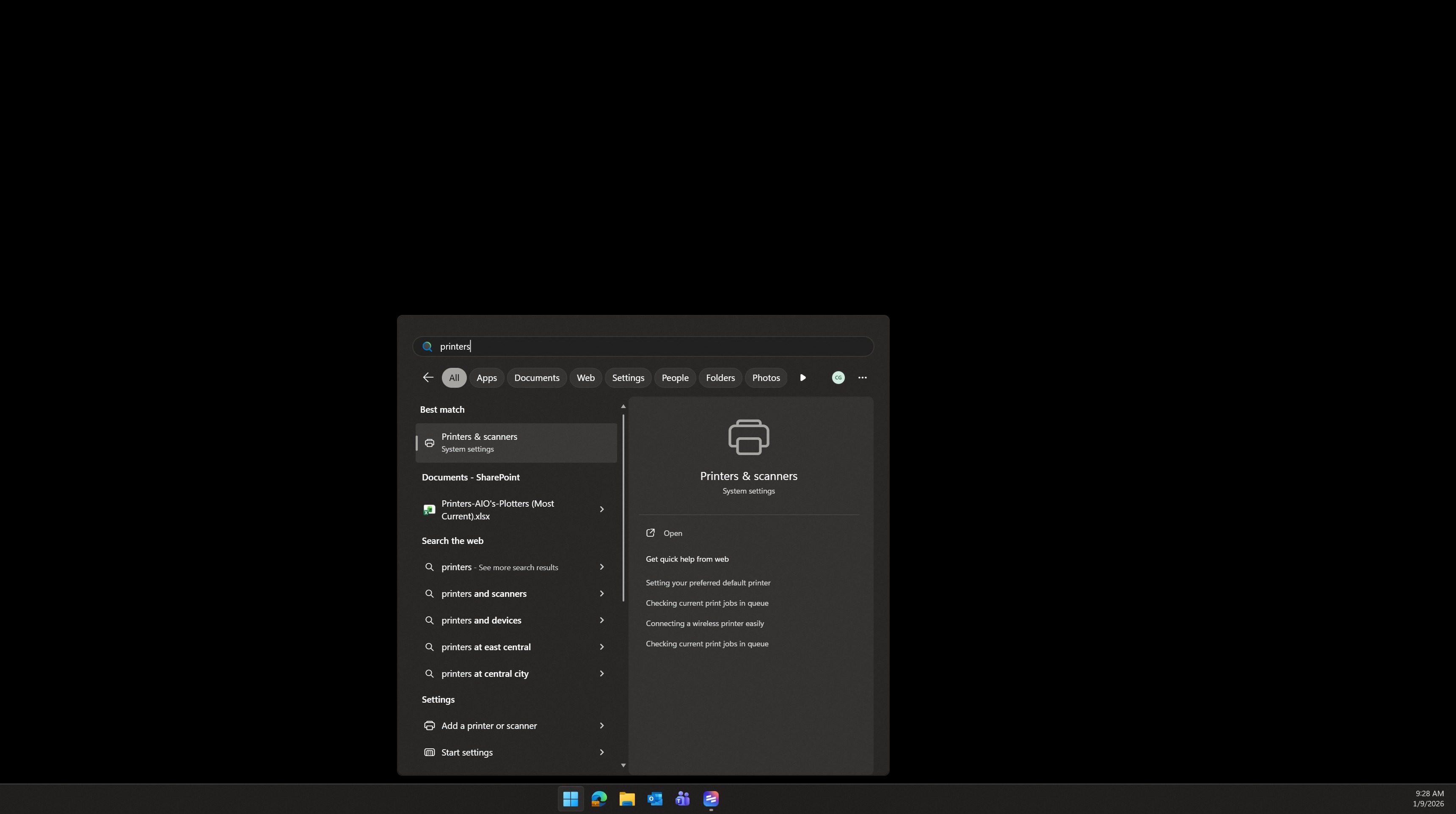
2. Type "printers". You should see the Printers & scanners result below. Press enter.
3. Click "SLC.525.120-Color".
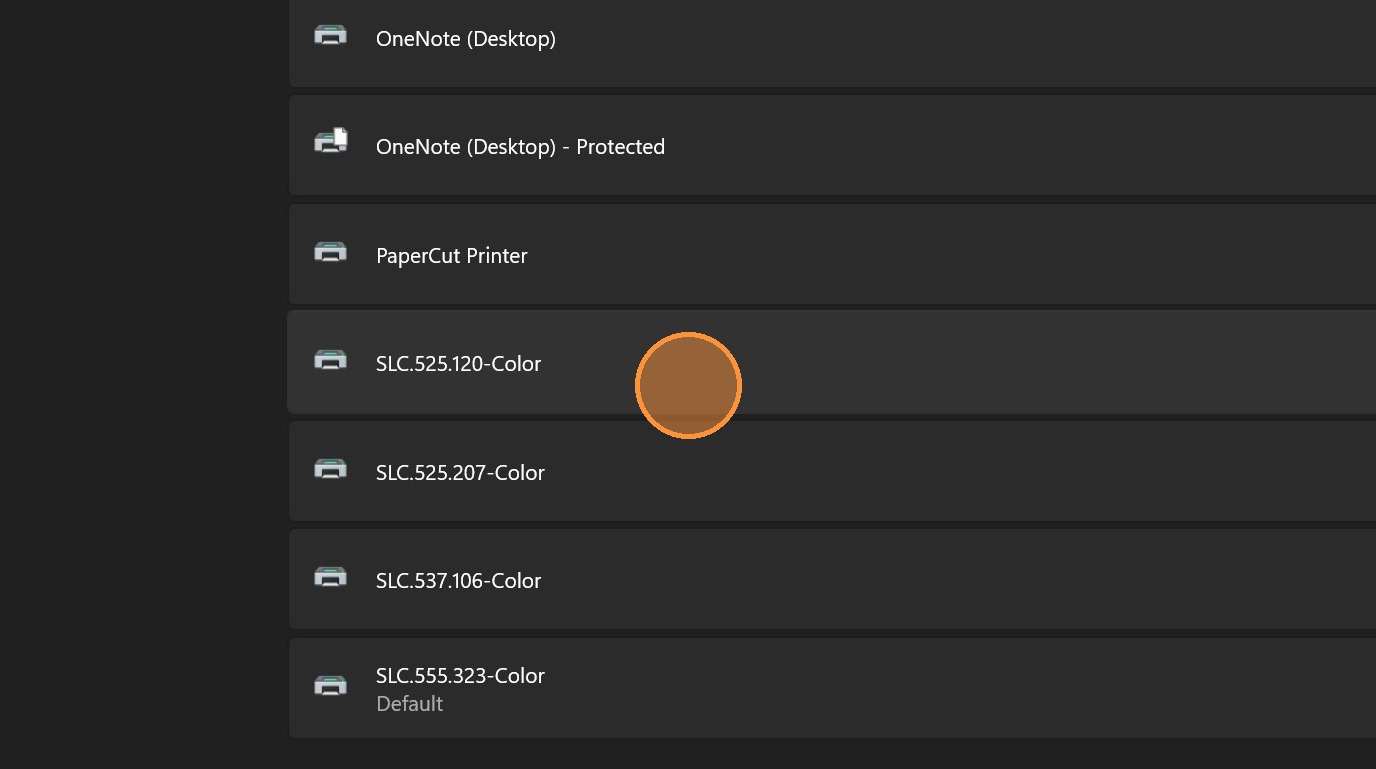
Tip: This setting has to be changed for each printer you want it to be changed on. Think of it as, you're changing your printing settings for the individual printer, not for your whole user account.
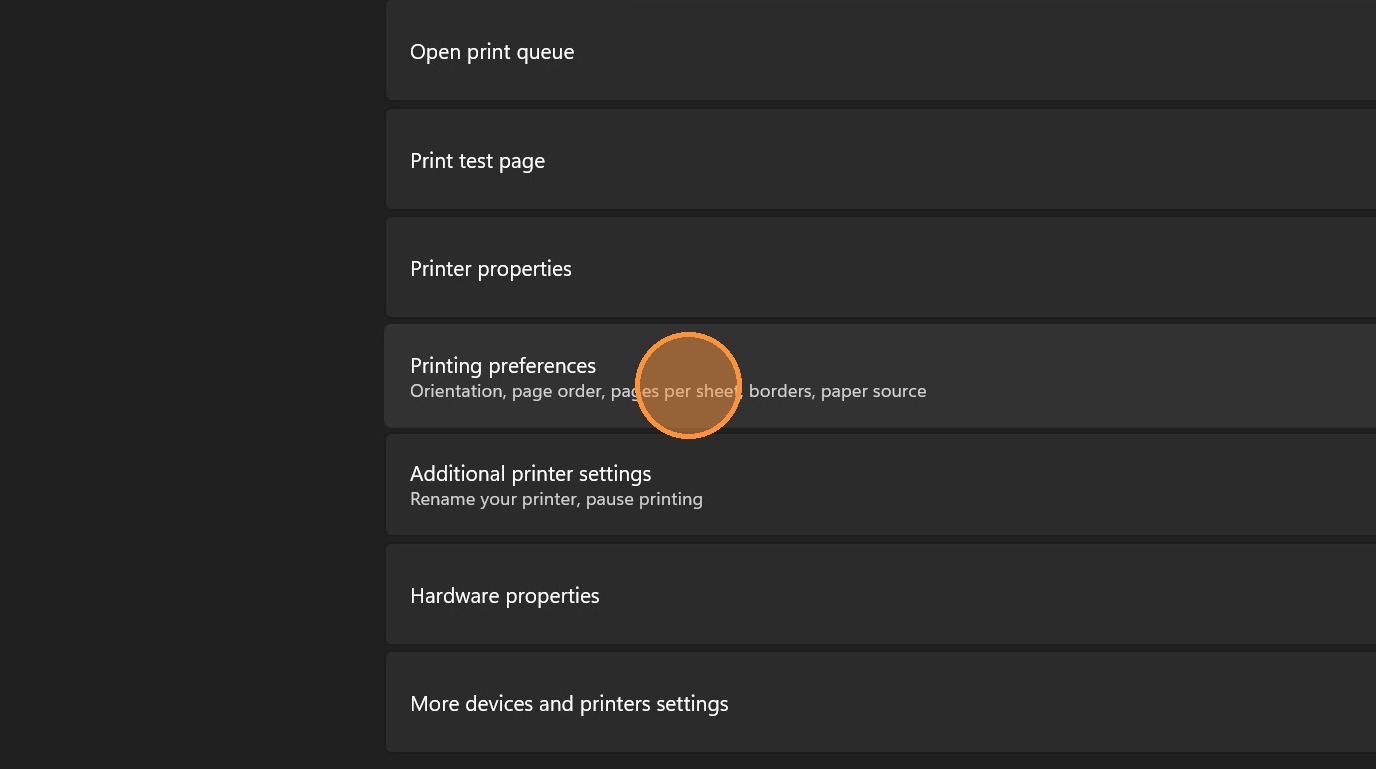
4. Click "Printing preferences".
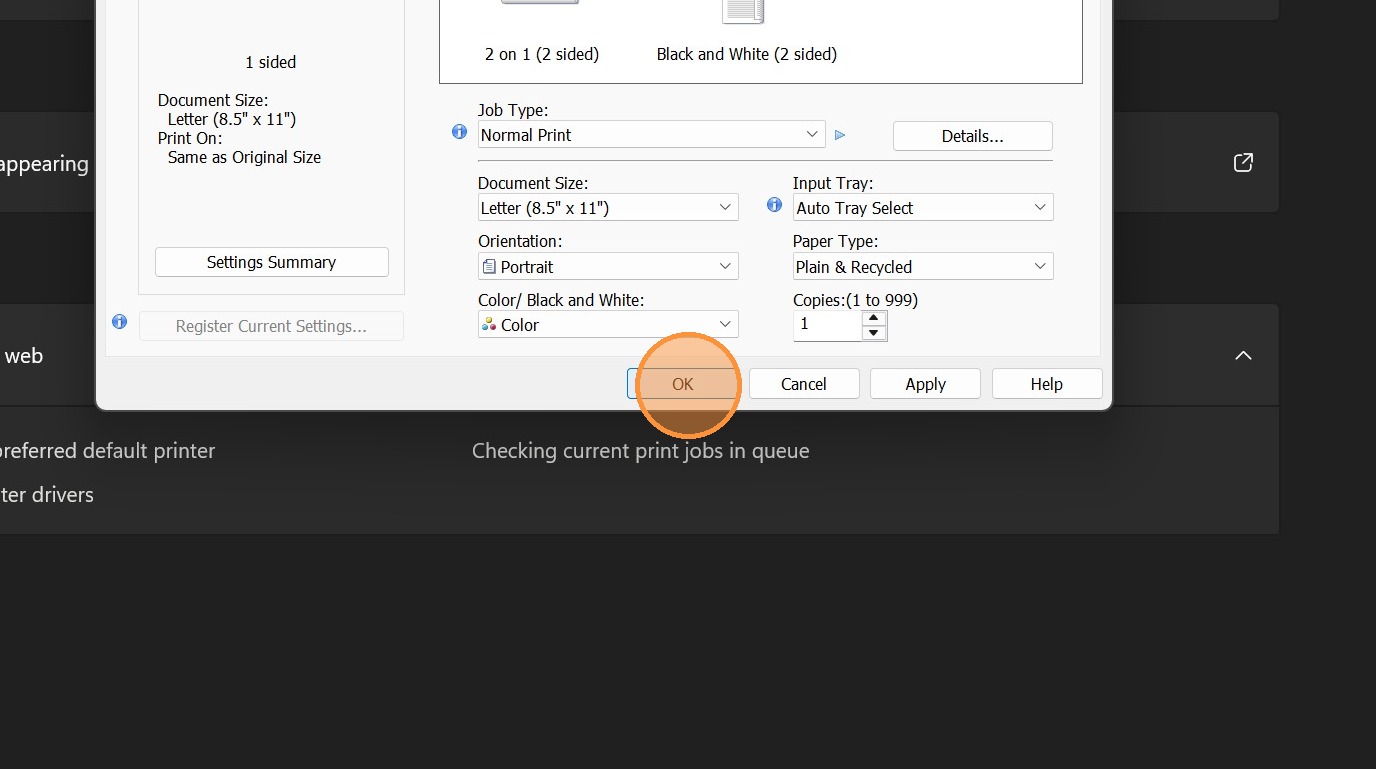
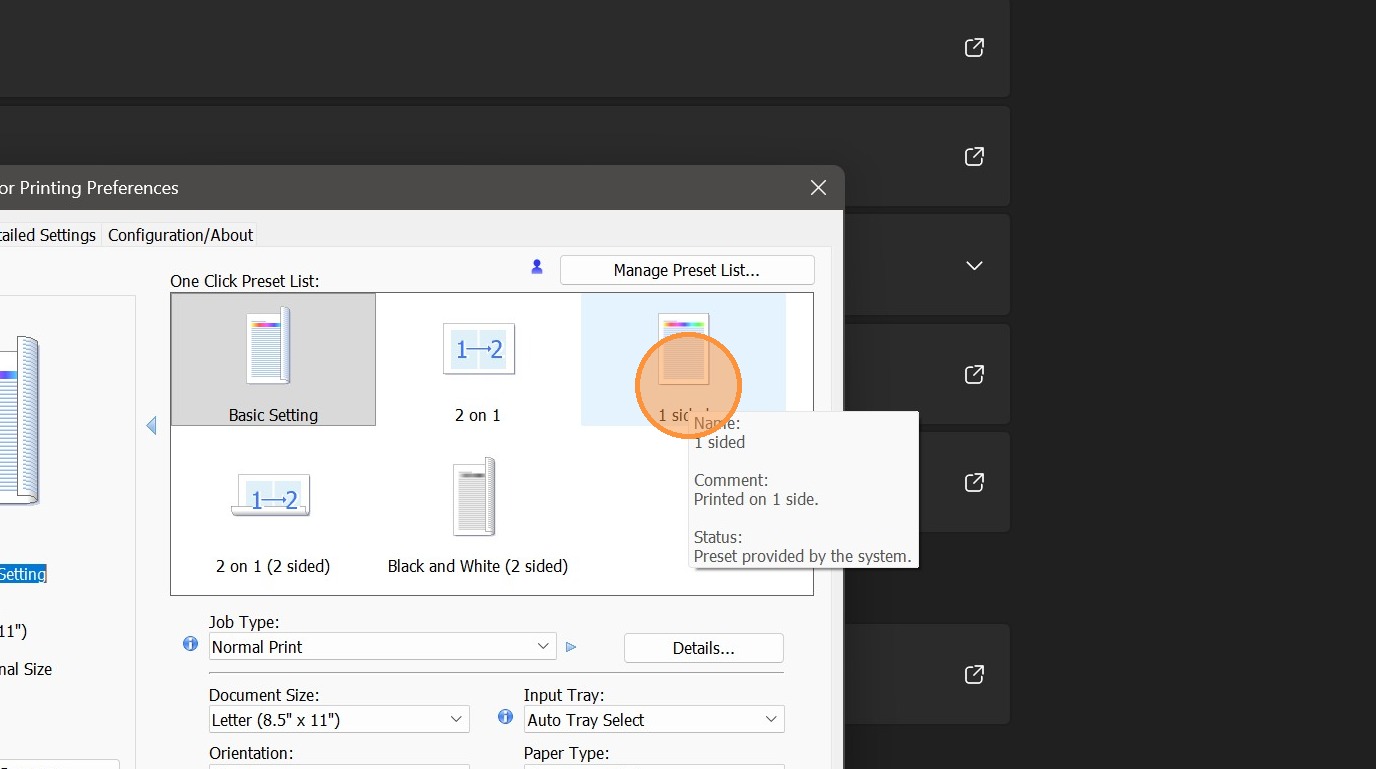
5. Click "1 sided"
6. Click "OK"